# Firebase App Distribution with codemagic.yaml
> How to deploy an app to Firebase App Distribution using codemagic.yaml
>
> **Note:** This guide only applies to workflows configured with the **codemagic.yaml**. If your workflow is configured with **Flutter workflow editor**, please go to [Publishing an app to Firebase App Distribution with Flutter workflow editor](../flutter-distributing/firebase-app-distribution).
>
### Requirements
For distributing an iOS application to [Firebase Console](https://console.firebase.google.com/), your application must use a development, Ad Hoc or Enterprise distribution profile.
To authenticate with Firebase, Codemagic requires either a **Firebase token** or a service account with **Firebase App Distribution Admin** role, as shown below:
#### 1. Authenticating via service account
Service accounts are useful for setting up App Distribution in a CI environment. Authenticating with a [service account](https://cloud.google.com/iam/docs/creating-managing-service-accounts) allows you to use client libraries (e.g., the Firebase CLI or fastlane) to distribute your builds. When you use a service account to authenticate, Firebase uses [Application Default Credentials (ADC)](https://cloud.google.com/docs/authentication/production) to locate your app's credentials, which you can provide by setting the `GOOGLE_APPLICATION_CREDENTIALS` environment variable.
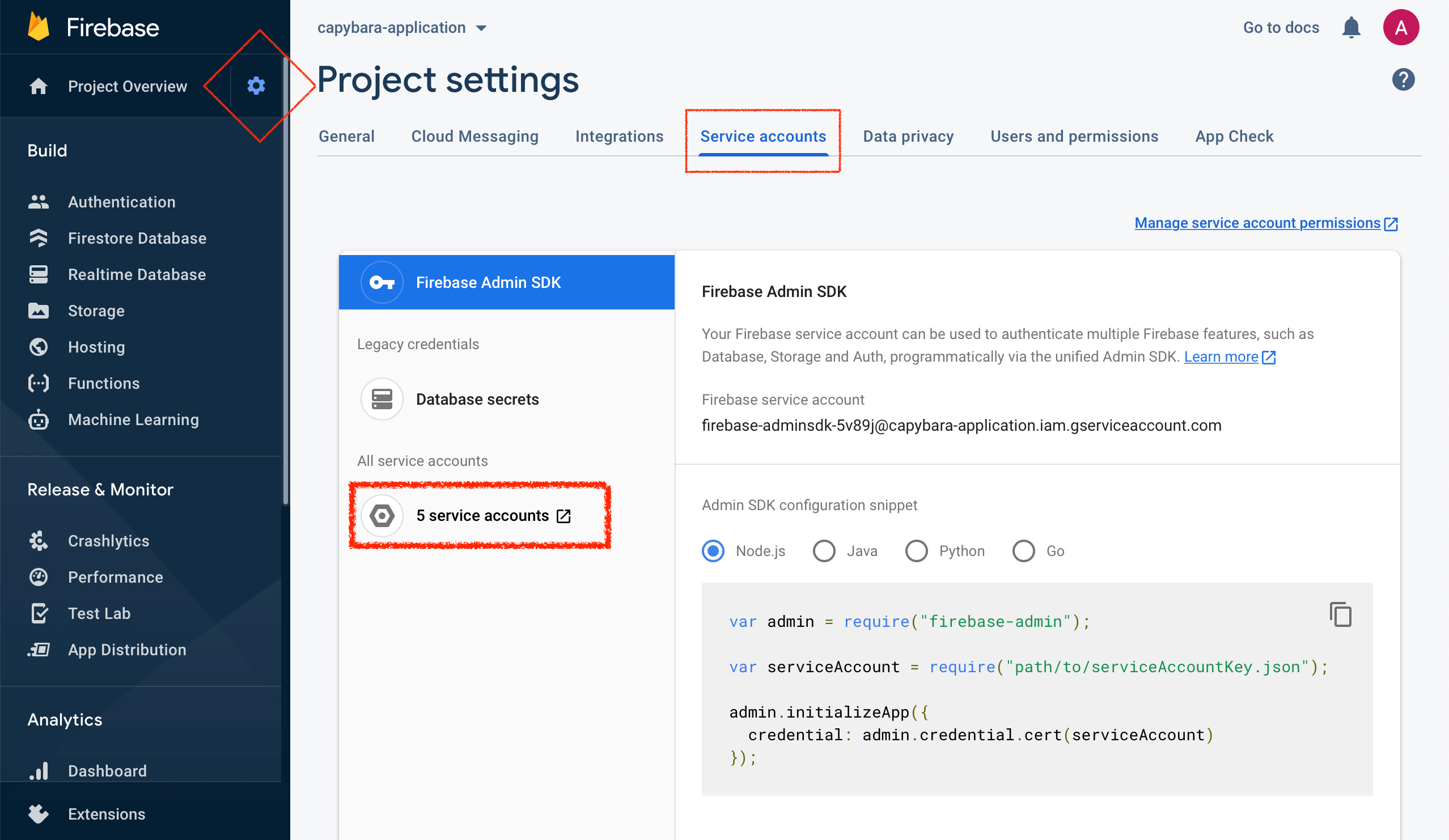
1. On the Firebase project page, navigate to **Project settings** by clicking on the cog button. Select the **Service accounts** tab. Click on the **X service accounts** button as shown on the screenshot.
2. This will lead you to the Google Cloud Platform. In step 1, fill in the **Service account details** and click **Create**. The name of the service account will allow you to identify it among other service accounts you may have created.
3. In step 2, click the **Select a role** dropdown menu and choose the role. Note that **Editor** role is required for Firebase Test Lab and **Firebase App Distribution Admin** for Firebase App Distribution.
4. In step 3, you can leave the fields blank and click **Done**.
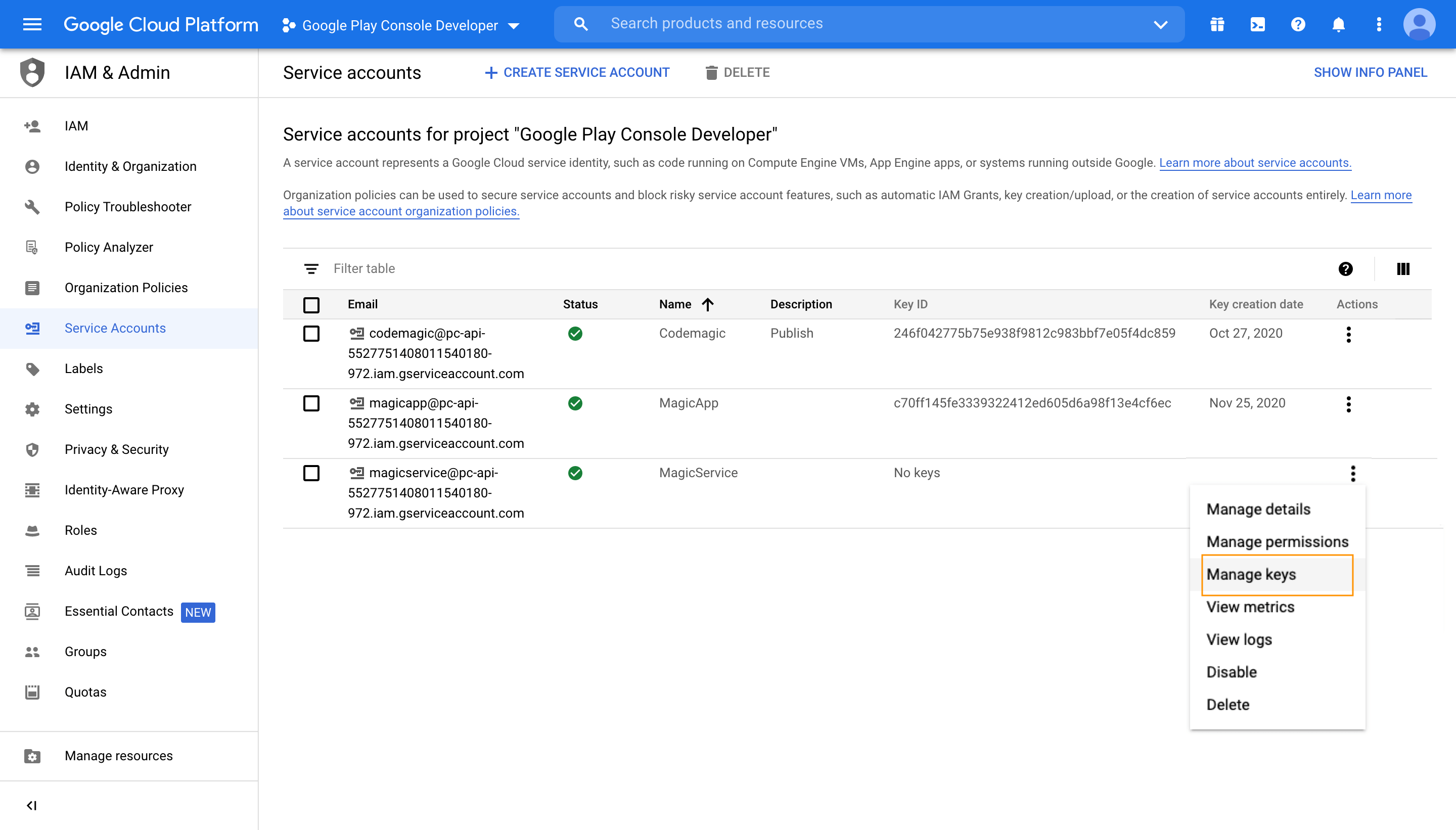
5. In the list of created service accounts, identify the account you have just created and click on the menu in the **Actions** column, then click **Manage keys**.
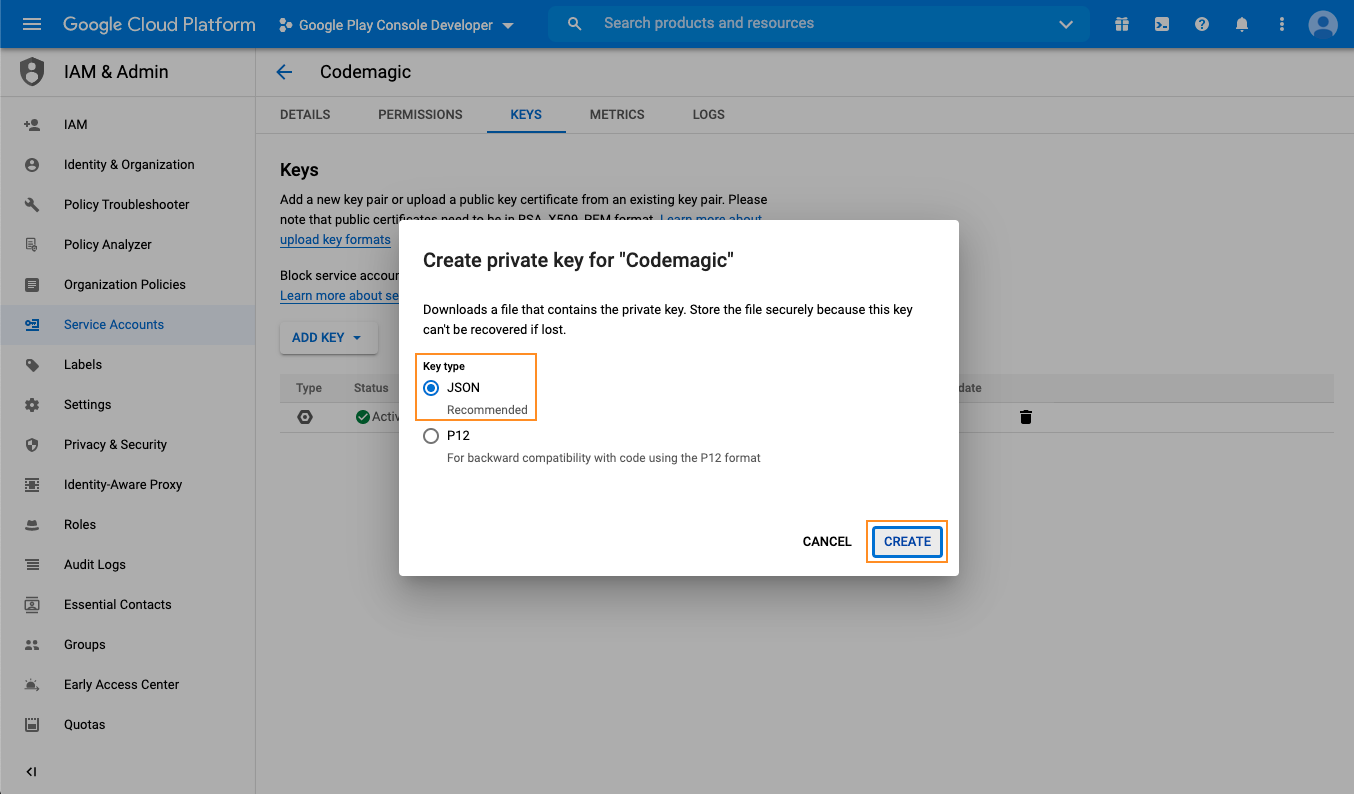
6. In the Keys section, click **Add Key > Create new key**. Make sure that the key type is set to `JSON` and click **Create**. Save the key file in a secure location to have it available.
7. Configure variables in codemagic.yaml:
1. Open your Codemagic app settings, and go to the **Environment variables** tab.
2. Enter the desired **_Variable name_**, e.g. `FIREBASE_SERVICE_ACCOUNT`.
3. Copy and paste the content of the service account JSON file as **_Variable value_**.
4. Enter the variable group name, e.g. **_firebase_credentials_**. Click the button to create the group.
5. Make sure the **Secret** option is selected.
6. Click the **Add** button to add the variable.
7. Repeat the steps to add a variable named `GOOGLE_APPLICATION_CREDENTIALS` and set its value to a path where the credentials file will be placed during build. Suggested value is "$CM_BUILD_DIR/firebase_credentials.json"
8. Add variables in your `codemagic.yaml`
```yaml
environment:
groups:
- firebase_credentials
```
#### 2. Authenticating via token
>
> **Warning:** Firebase has marked authentication via token as deprecated and might disable it in future versions of `firebase tool`. Please authenticate using a service account, as described above.
>
To retrieve your Firebase token, follow the instructions in [Firebase documentation](https://firebase.google.com/docs/cli#cli-ci-systems).
1. Open your Codemagic app settings, and go to the **Environment variables** tab.
2. Enter the desired **_Variable name_**, e.g. `FIREBASE_TOKEN`.
3. Enter the token value as **_Variable value_**.
4. Enter the variable group name, e.g. **_firebase_credentials_**. Click the button to create the group.
5. Make sure the **Secret** option is selected.
6. Click the **Add** button to add the variable.
### Distribution to Firebase
Example configuration for publishing Android and iOS artifacts to Firebase:
```yaml
publishing:
firebase:
# use this line to authenticate via service account
firebase_service_account: $FIREBASE_SERVICE_ACCOUNT
# or this line to authenticate via token:
# firebase_token: $FIREBASE_TOKEN
android:
# Add your Android app id retrieved from Firebase console
app_id: x:xxxxxxxxxxxx:android:xxxxxxxxxxxxxxxxxxxxxx
# Add one or more groups that you wish to distribute your Android application to.
# You can create groups in the Firebase console
groups:
- androidTesters
- ...
ios:
# Add your iOS app id retrieved from Firebase console
app_id: x:xxxxxxxxxxxx:ios:xxxxxxxxxxxxxxxxxxxxxx
# Add one or more groups that you wish to distribute your iOS application to.
# You can create groups in the Firebase console
groups:
- iosTesters
- ...
```
If you wish to pass release notes with your build, create a `release_notes.txt` file and add it to the project working directory, which is either the repository root directory or the Project path specified in the Build section in your workflow settings. Codemagic will fetch the content of that file and publish it with the build.
In order to distribute an `.aab` to testers via Firebase App Distribution, your Firebase project must be linked to your Google Play account. More information is available [here](https://firebase.google.com/docs/app-distribution/android/distribute-console?apptype=aab#before_you_begin)
#### Publishing only the Android app bundle or APK artifact to Firebase App Distribution
If you are building both an Android app bundle and an APK in your workflow, Codemagic will, by default, try to publish the bundle to Firebase App Distribution. If you wish to publish the APK, specify the artifact type as `apk` using the `artifact_type` field.
```yaml
publishing:
firebase:
firebase_service_account: $FIREBASE_SERVICE_ACCOUNT
android:
app_id: x:xxxxxxxxxxxx:android:xxxxxxxxxxxxxxxxxxxxxx
groups:
- androidTesters
- ...
artifact_type: 'apk' # Replace with 'aab' to only publish the Android app bundle
```
## Publishing to Firebase App Distribution with Fastlane
Before running a lane, you should install Fastlane Firebase app distribution plugin.
```yaml
- name: Install fastlane-plugin-firebase_app_distribution
script: |
gem install bundler
sudo gem install fastlane-plugin-firebase_app_distribution --user-install
```
Then you need to call a lane. This code is similar for Android and iOS.
### Option: Android
%!s()