# How to authenticate with Firebase using Google service account
Service accounts are useful for setting up App Distribution in a CI environment. Authenticating with a [service account](https://cloud.google.com/iam/docs/creating-managing-service-accounts) allows you to use client libraries (e.g., the Firebase CLI or fastlane) to distribute your builds. When you use a service account to authenticate, Firebase uses [Application Default Credentials (ADC)](https://cloud.google.com/docs/authentication/production) to locate your app's credentials, which you can provide by setting the `GOOGLE_APPLICATION_CREDENTIALS` environment variable.
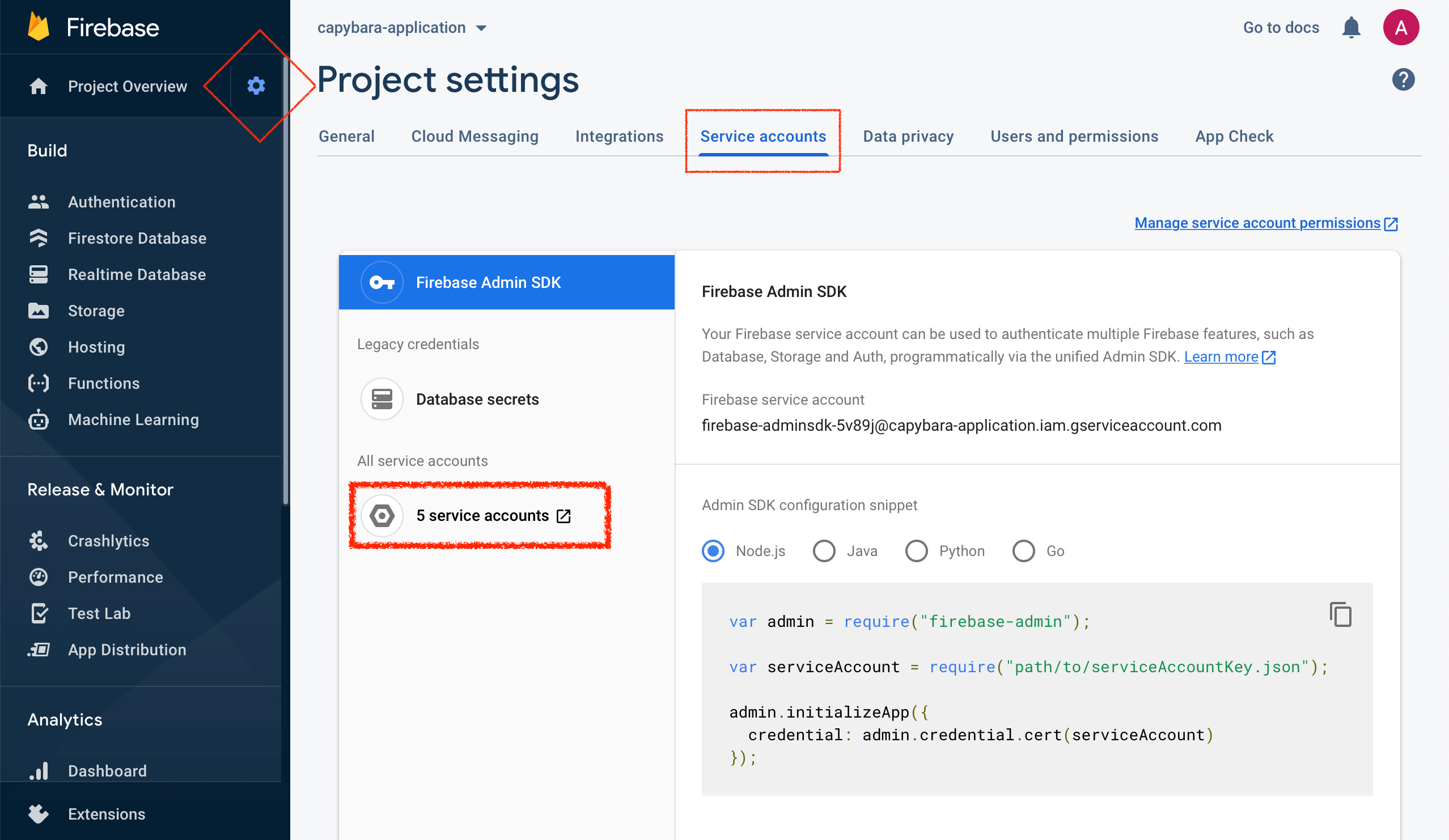
1. On the Firebase project page, navigate to **Project settings** by clicking on the cog button. Select the **Service accounts** tab. Click on the **X service accounts** button as shown on the screenshot.
2. This will lead you to the Google Cloud Platform. In step 1, fill in the **Service account details** and click **Create**. The name of the service account will allow you to identify it among other service accounts you may have created.
3. In step 2, click the **Select a role** dropdown menu and choose the role. Note that **Editor** role is required for Firebase Test Lab and **Firebase App Distribution Admin** for Firebase App Distribution.
4. In step 3, you can leave the fields blank and click **Done**.
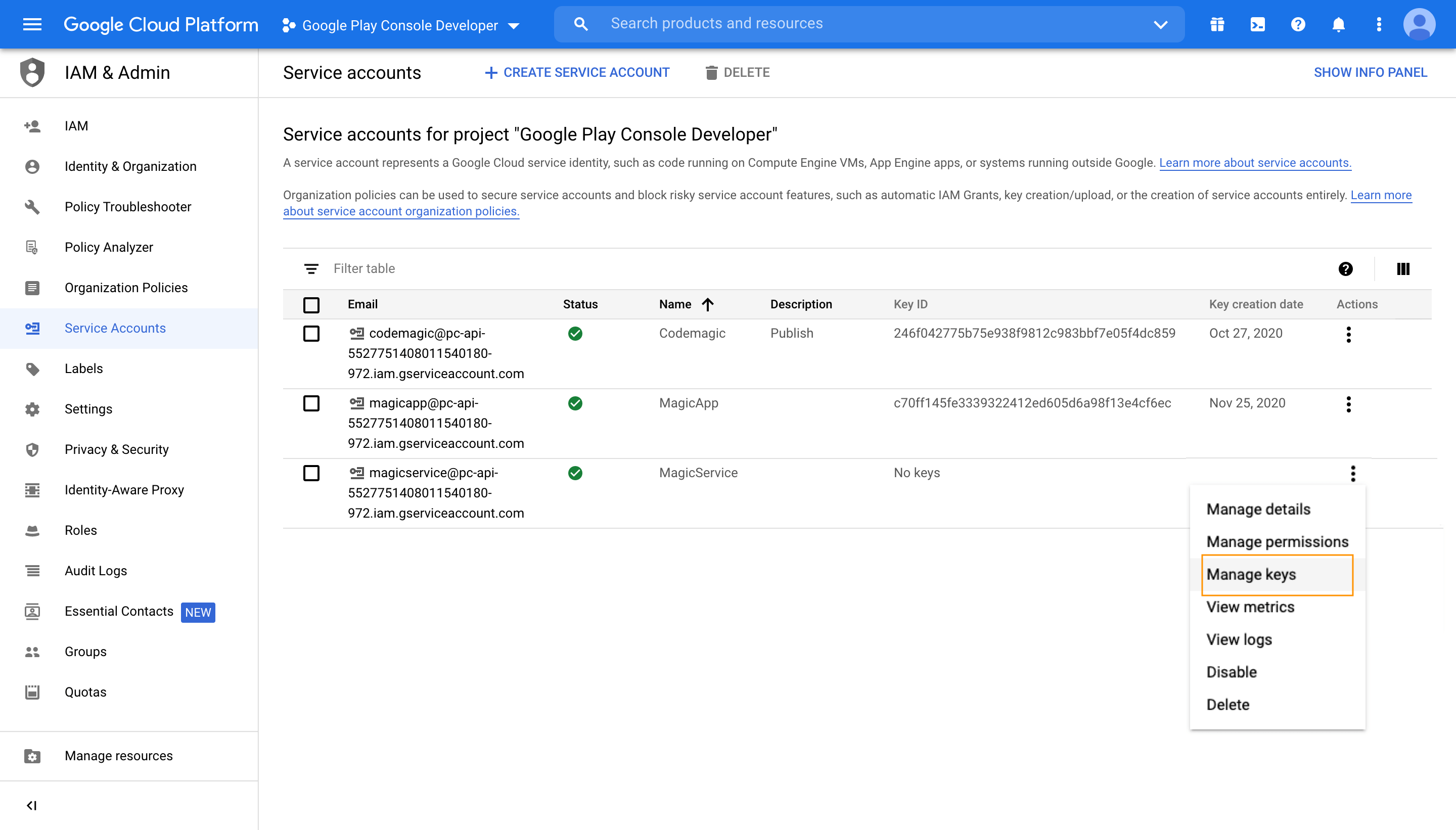
5. In the list of created service accounts, identify the account you have just created and click on the menu in the **Actions** column, then click **Manage keys**.
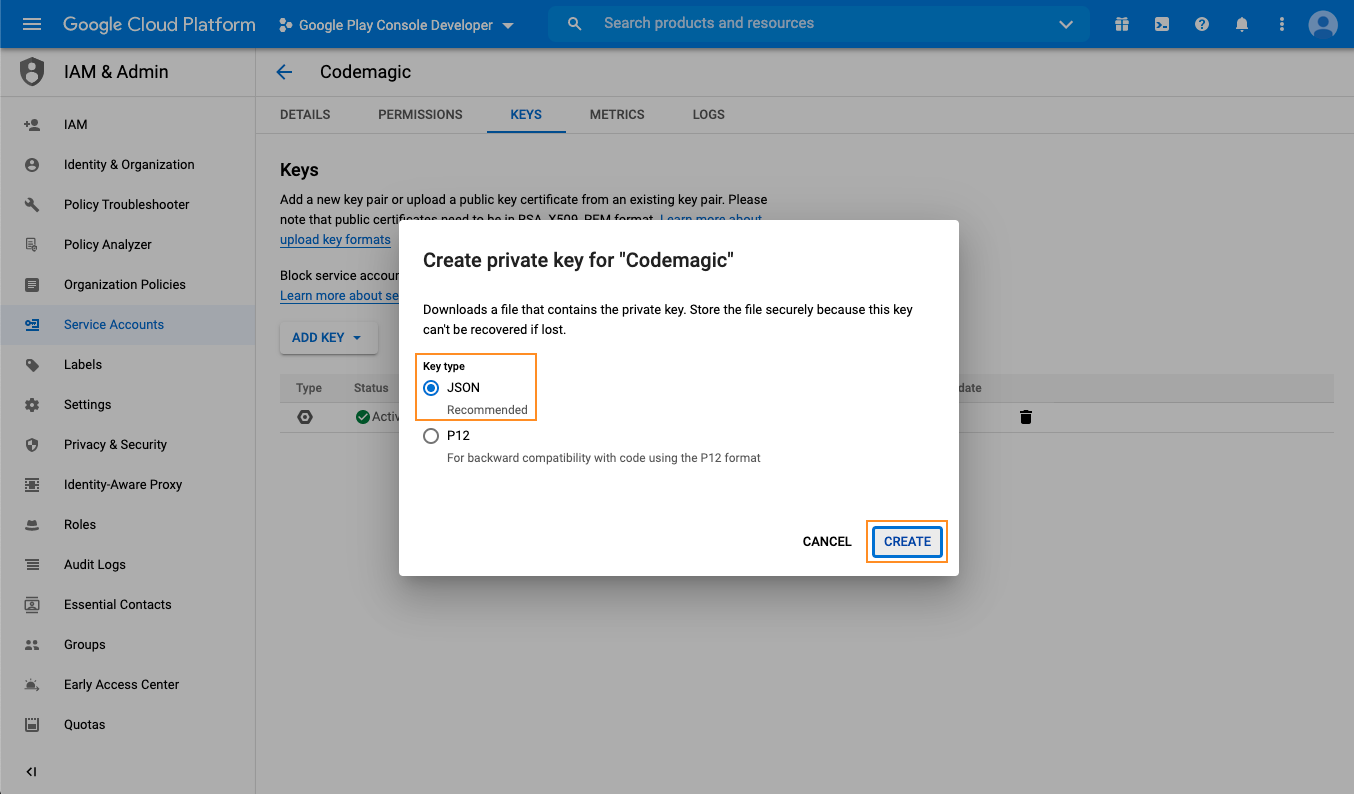
6. In the Keys section, click **Add Key > Create new key**. Make sure that the key type is set to `JSON` and click **Create**. Save the key file in a secure location to have it available.
7. Configure variables in codemagic.yaml:
1. Open your Codemagic app settings, and go to the **Environment variables** tab.
2. Enter the desired **_Variable name_**, e.g. `FIREBASE_SERVICE_ACCOUNT`.
3. Copy and paste the content of the service account JSON file as **_Variable value_**.
4. Enter the variable group name, e.g. **_firebase_credentials_**. Click the button to create the group.
5. Make sure the **Secret** option is selected.
6. Click the **Add** button to add the variable.
7. Repeat the steps to add a variable named `GOOGLE_APPLICATION_CREDENTIALS` and set its value to a path where the credentials file will be placed during build. Suggested value is "$CM_BUILD_DIR/firebase_credentials.json"
8. Add variables in your `codemagic.yaml`
```yaml
environment:
groups:
- firebase_credentials
```